> For the complete documentation index, see [llms.txt](https://helpcenter.acronym.exchange/llms.txt). Markdown versions of documentation pages are available by appending `.md` to page URLs; this page is available as [Markdown](https://helpcenter.acronym.exchange/getting-started/quickstart.md).
# Creating an account on Acronym
Acronym is a secure, user-friendly digital asset wallet and trading platform for traders that strives to give individual traders institutional-level security for free. The process of opening an Acronym account is simple and will just take a few minutes.
{% hint style="info" %}
**Important:** Before you open an Acronym account, check our [Terms of Service](https://docs.acronym.exchange/readme/terms-of-service) to see if you are qualified based on your country of residence and nationality.
{% endhint %}
### Get started with Acronym
1. To get started on the Acronym platform, click the **Create Account** button located in the top-right corner of the page.
{% hint style="info" %}
**Important:** Since there could be fraudulent sites, double-check that you're on the official Acronym website:
{% endhint %}
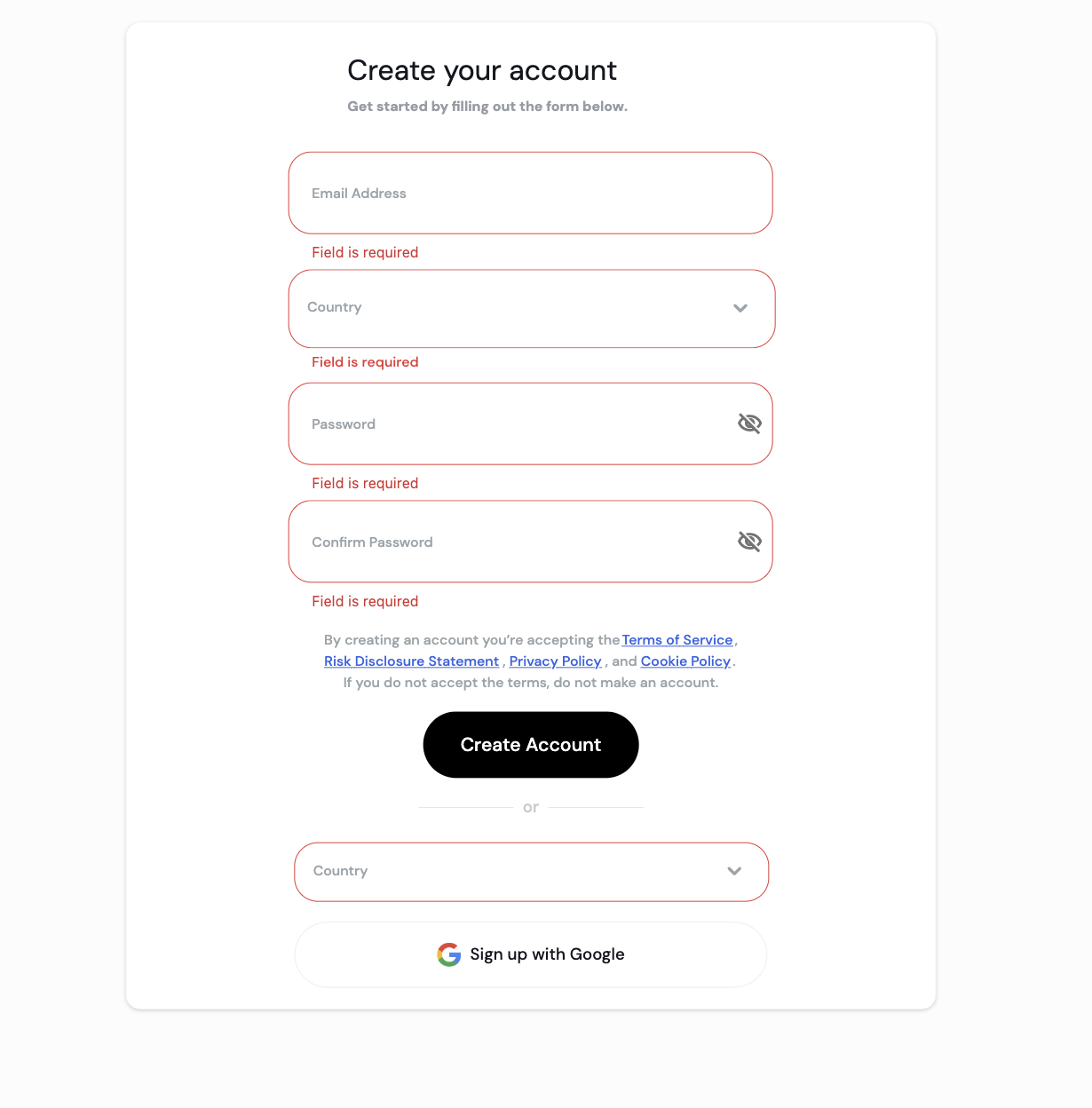
2. On the sign-up page, you can either create an account by entering your email, selecting your country, and setting a password, or you can choose your country first and sign up using Google.
{% hint style="info" %}
**Note:** The email address cannot be previously used on the Acronym platform.
{% endhint %}
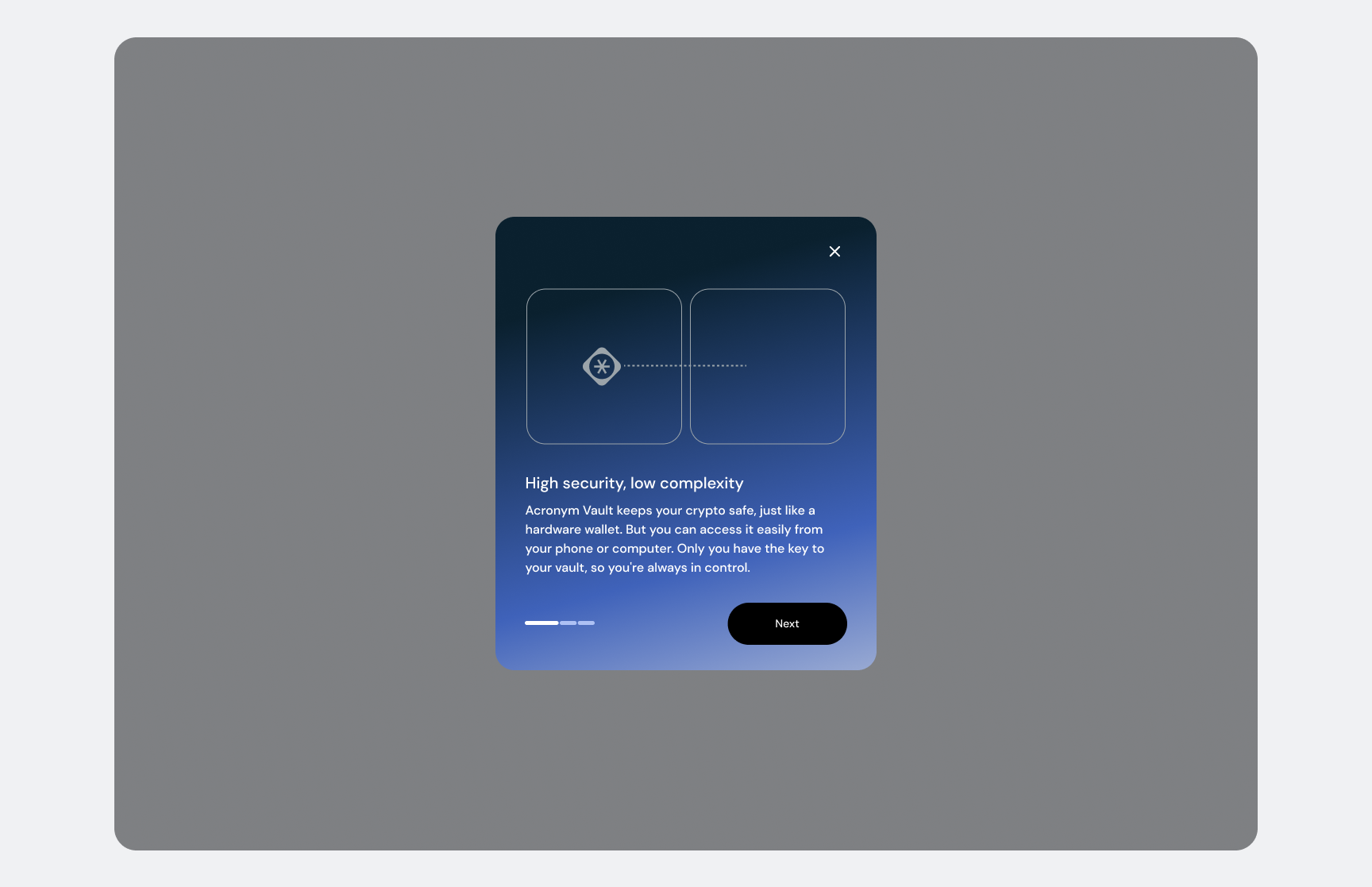
3. Awesome! You have now generated your very own Acronym Vault. Now starts the most important part, securing your account. Once signed up you will get a prompt asking you to set up your master password and 2FA.
4. At this step, it's time to set up your master password. Think of your master password as the ultimate key to your account's vault! It's what keeps your crypto safe and your transactions secure. Make it strong, keep it safe, and remember—it’s your trusty backup if you ever lose access to 2FA!
5. At this step, you must enable a Google Two-Factor Authenticator to protect the security of your account.
{% hint style="info" %}
**Important:** Your 2FA can only be reset with your master password or with the assistance of Acronym customer support.
{% endhint %}
6. Once your 2FA is set up you should download your emergency kit for the ultimate security.
{% hint style="info" %}
**Note:** Make sure to store this information somewhere safe. We highly recommend that you:
1. Print this document.
2. Store this document in a secure location, such as a fireproof safe.
{% endhint %}
---
# Agent Instructions
This documentation is published with GitBook. GitBook is the documentation platform designed so that both humans and AI agents can read, navigate, and reason over technical content effectively. Learn more at gitbook.com.
## Querying This Documentation
If you need additional information that is not directly available in this page, you can query the documentation by asking a question.
Perform an HTTP GET request on the following URL with the `ask` and `goal` query parameters:
```
GET https://helpcenter.acronym.exchange/getting-started/quickstart.md?ask=&goal=
```
`ask` is the immediate question: it should be specific, self-contained, and written in natural language.
`goal` is what the user is ultimately trying to achieve, the reason they need the answer. Sharing it helps GitBook give you a better, more relevant answer. A goal is most helpful when it describes the outcome the user wants rather than restating the question. For example, with `ask=how do I create an API token`, a goal like `automate deployments from our CI pipeline` lets GitBook tailor the answer to that use case.
The response will contain a direct answer to the question and relevant excerpts and sources from the documentation.
Use this mechanism when the answer is not explicitly present in the current page, you need clarification or additional context, or you want to retrieve related documentation sections.